
Unit 3: Figure and availability#
Topics: Create a figure with Inkscape, annotation, figure legends, and image availability.
Learning objective#
Learners should be able to create a complete scientific image figure using vector graphics software, adding legible annotations, figure legends, and method descriptions, and make the underlying image data available in a public repository, so that the data and image processing are fully documented and communicated.
Time needed: 15 min
Motivation#
After processing the image, the final image figure needs to be created. We recommend doing this in a vector graphics program, such as Inkscape. This facilitates resizing of the image panel and adding labels.
Some journals even require that additional annotations are provided as vector graphics and not burned into the image.
Key considerations#
All important annotations present?
Are annotations legible?
Do annotations not obscure image information?
Figure legends document important information (e.g., dimension of scale bar)?
Introduction#
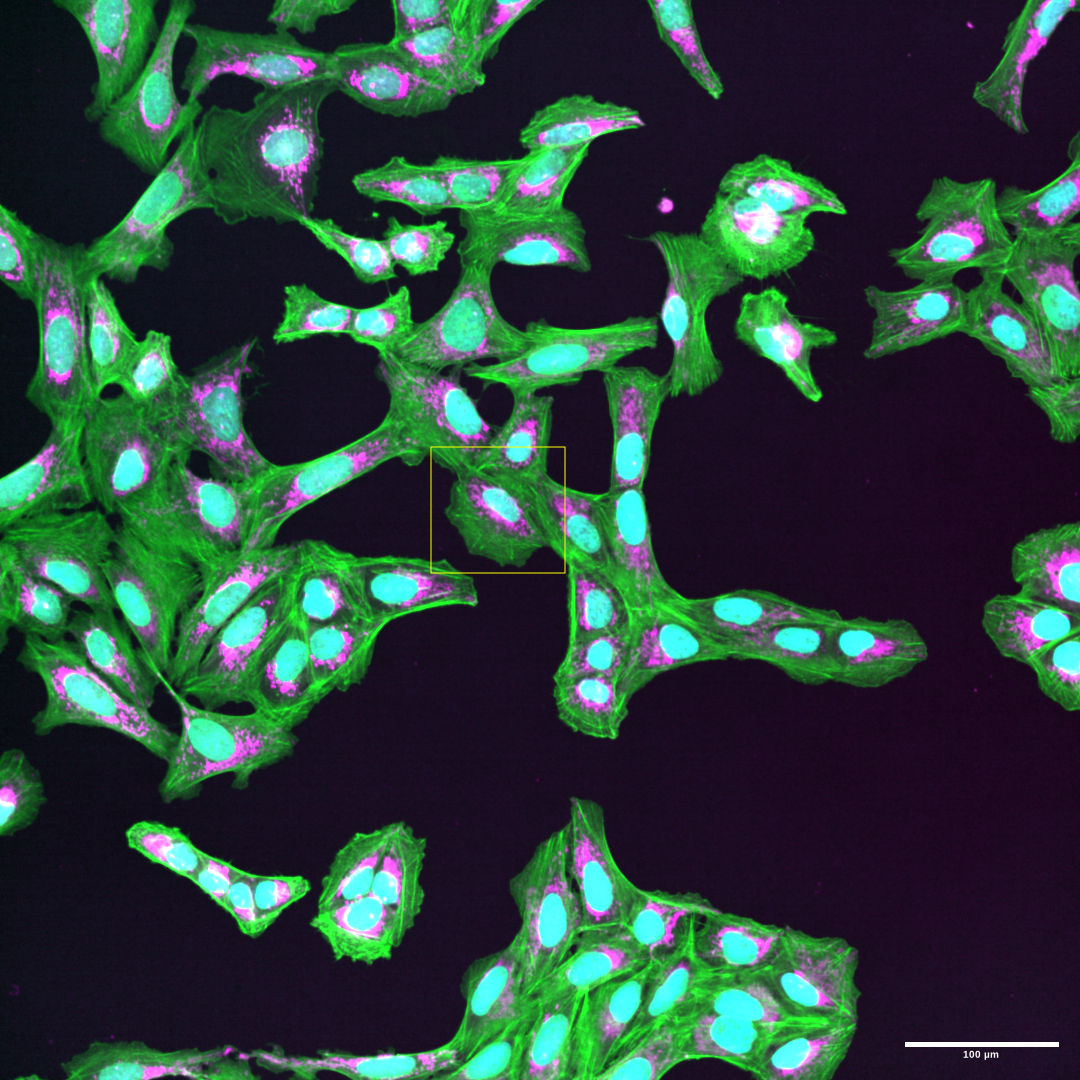
In Unit 1: Visibility and Unit 2: Format and annotations we have processed an image panel to be included in an image figure.
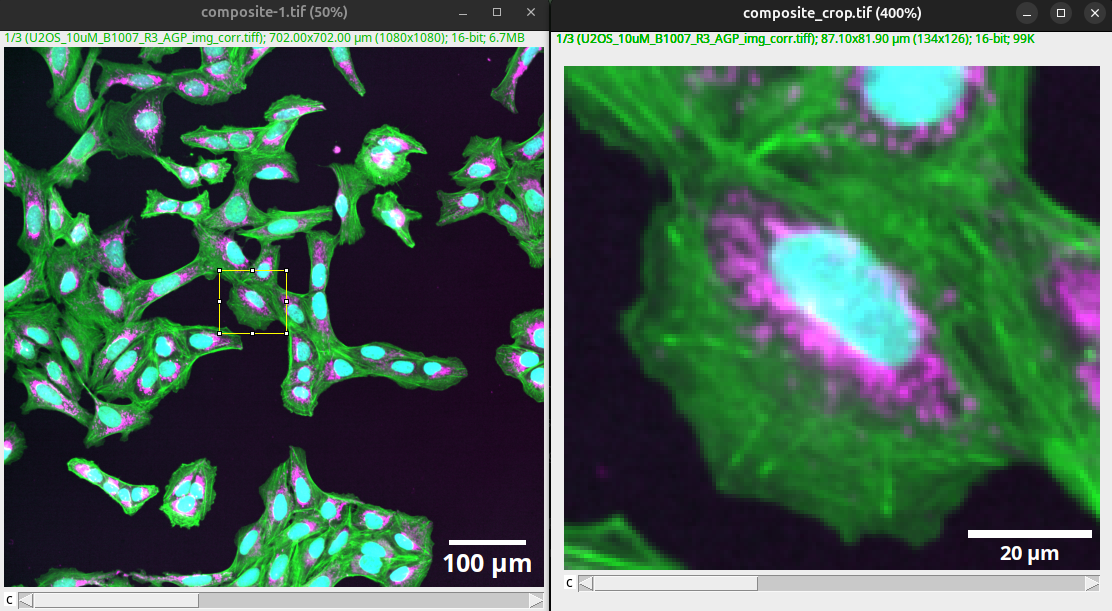
Fig. 58 Processed overview and crop for one panel of an image figure.#
You can download the result of Unit 2: Format and annotations here: composite_scale.tif and composite_crop_scale.tif.
Typically, we want to present other image panels too, for instance, compare wild type versus a treatment. In this case, the first image is of U2-OS cells treated with DMSO as a control. In our example figure, we now want to compare U2-OS cells treated with Nocodazole acquired with the same settings.
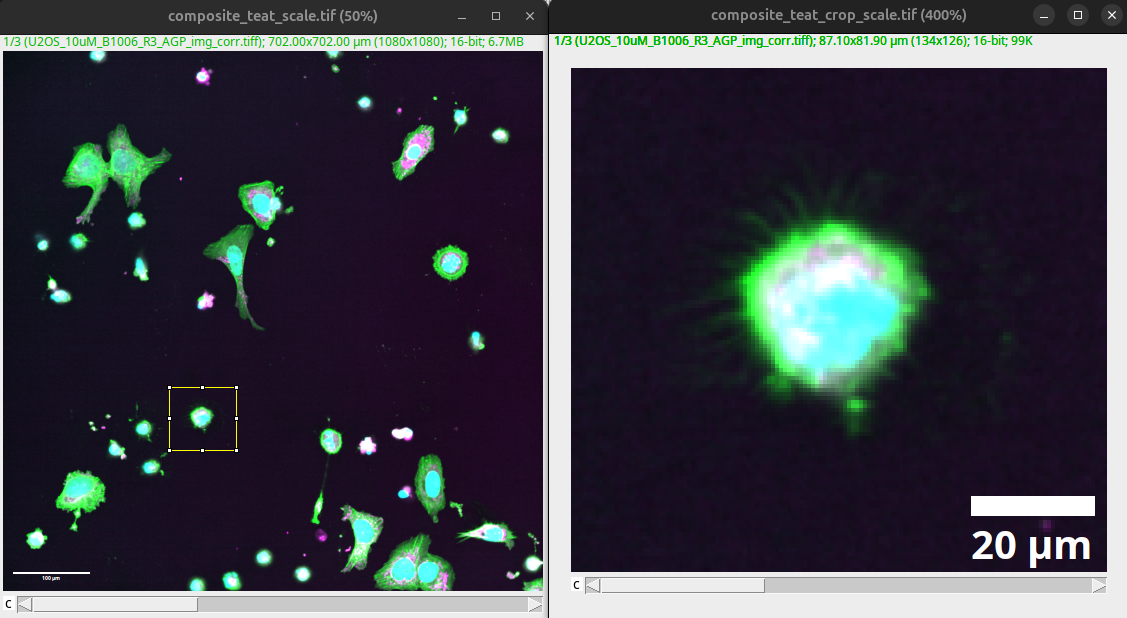
Fig. 59 Processed overview and crop for treatment panel of an image figure.#
Note
You can already see one of the challenges with annotations in processed images. Unless all settings are the same, the different annotations end up with different font sizes. We will show you how to overcome this issue by modifying and adding annotations in a vector graphics program.
You can download the original image for the treatment here: multichannel_image_treat.tif. Then perform the processing described in Unit 1: Visibility and Unit 2: Format and annotations.
Important
For an accurate qualitative comparison, the images need to be processed with the same settings, since differences introduced by the processing itself (e.g., a brighter contrast on the treated condition) would otherwise be indistinguishable from real biological differences.
You can download the result here: composite_treat_scale.tif and composite_treat_crop_scale.tif.
BioVoxxel Figure Tools#
The final image figure will be created in a vector graphics program (i.e., Inkscape). For exporting the raster graphics images as vector graphics files, we are going to use the BioVoxxel Figure Tools plugin.
For more information on what raster graphics are and why we want to use vector graphics, see here: Raster graphics and interpolation.
We can install this plugin via an update site:
Help > Update…
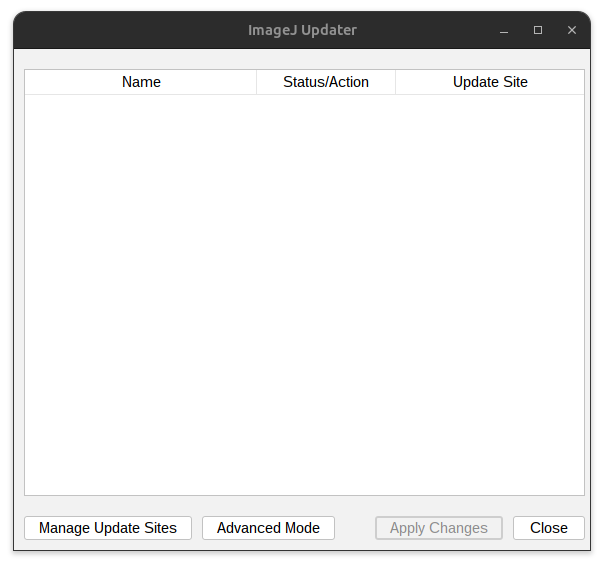
Fig. 60 Update Fiji.#
Press: Manage update site
Select BioVoxxel Figure Tools
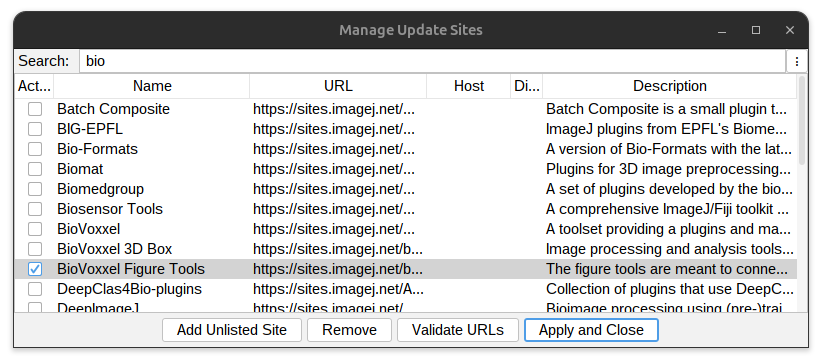
Fig. 61 Add BioVoxxel Figure Tools plugin.#
Press: Apply and Close.
Restart Fiji.
Export images as SVG#
Open all images for export. You can then export all the images as .svg files:
Plugins > BioVoxxel Figure Tools > Export all images as SVG
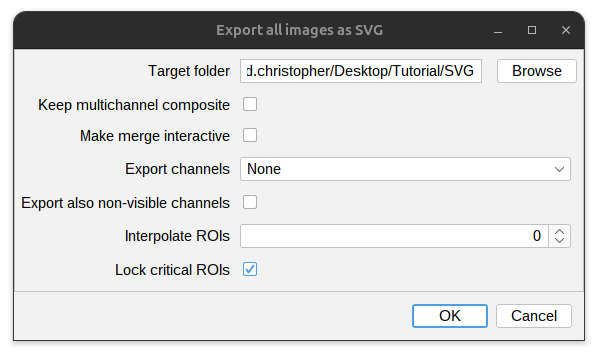
Fig. 62 Export images as SVG.#
You can download the examples here (right-click and select “Save Link As…”):
Figures in Inkscape#
SVG is a vector graphic format that can be loaded and processed in Inkscape. We have prepared a figure template based on an A4 page that includes guides to leave page margins: figure_template.svg (right-click and select “Save Link As…”).
Open the template in Inkscape:
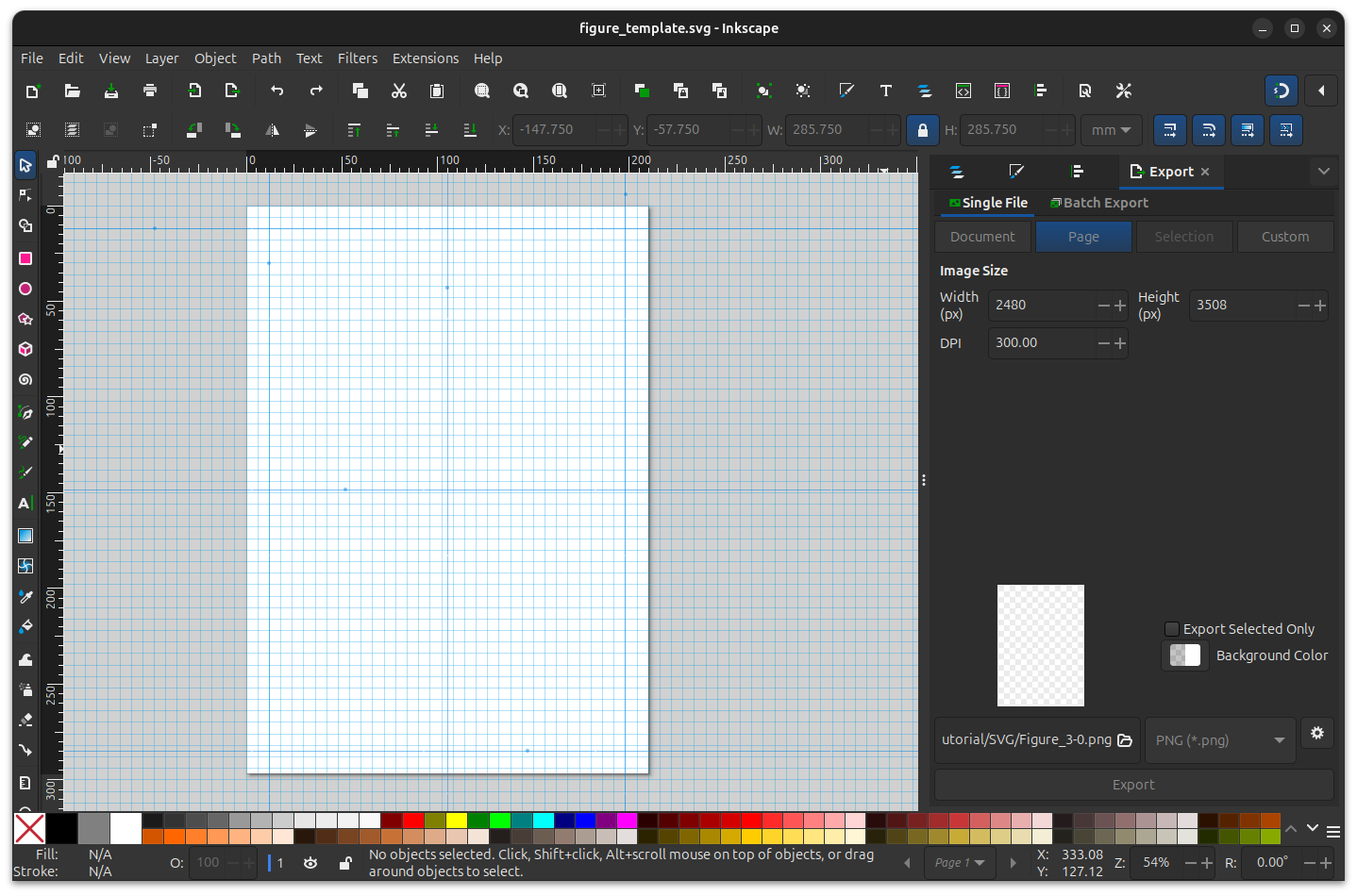
Fig. 63 Figure template in inkscape.#
Import images into inkscape#
We are now able to load the images exported as SVG into Inkscape. The advantage here is that the images, as well as the included annotations, are full vector graphics. Annotations such as scale bars can be edited, and the images can be resized without interpolation.
Drag and drop SVG files into inkscape.
File > Import…
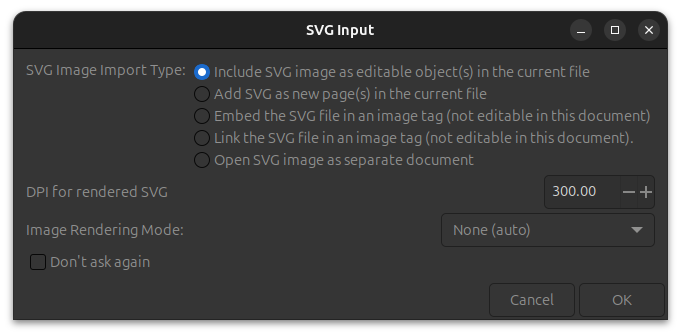
Fig. 64 Import SVG images into inkscape.#
Important
Import images at 300 dpi, as this is the required printing resolution of most journals.
Resize images#
The first step is to resize the image to fit the image figure. When resizing, make sure to lock the aspect ratio and resize the image uniformly. After import, the annotations can be edited.
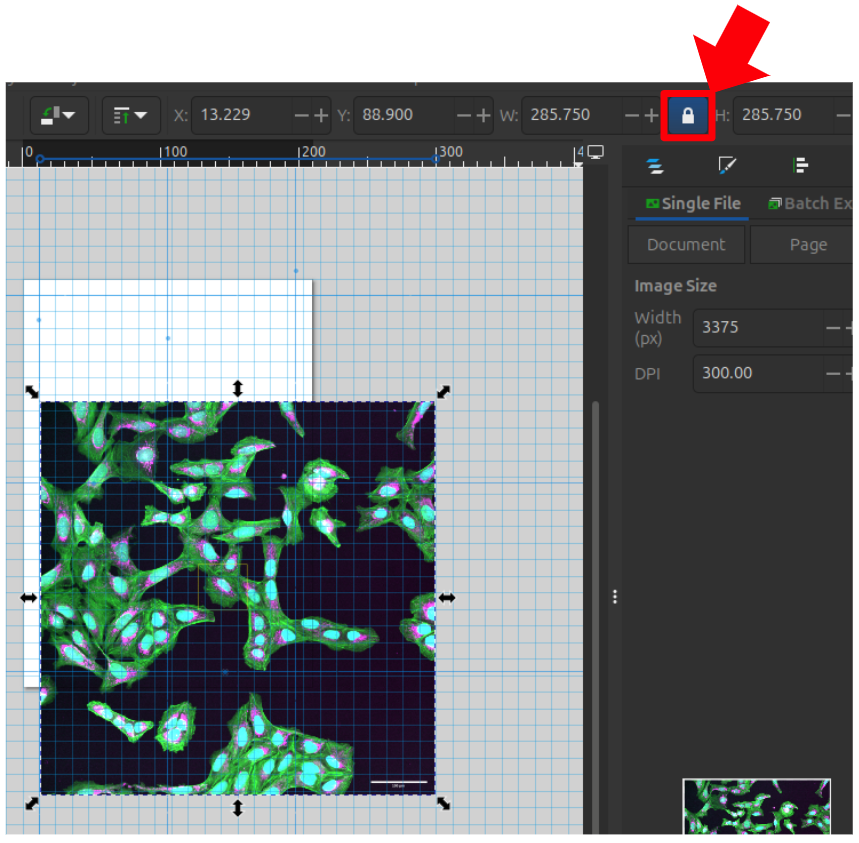
Fig. 65 Resize image panel to fit the figure. Note the lock on the aspect ratio, used to resize the image uniformly.#
Modify scale bar#
Next, you can select an annotation in Layers and Objects. Modify the size and location of the annotation.
Layer > Layers and Objects…
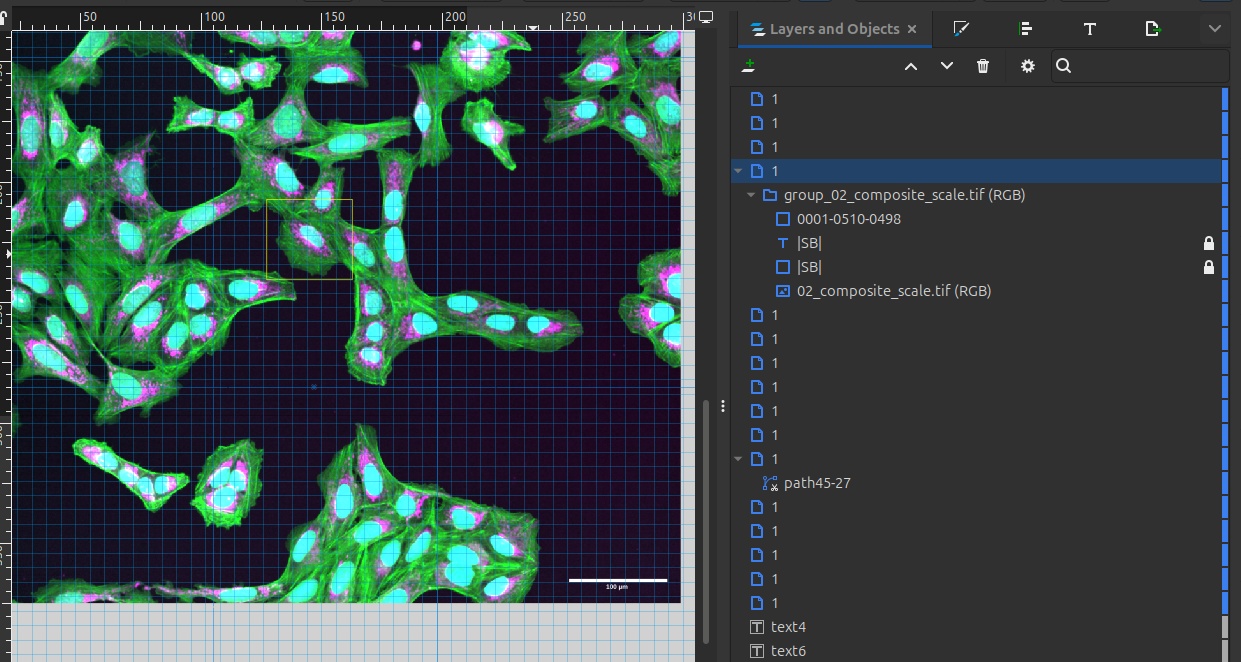
Fig. 66 Layers and objects allow for selecting the different annotations.#
Important
Ensure that the annotations are legible. Make sure the annotations do not obscure any data.
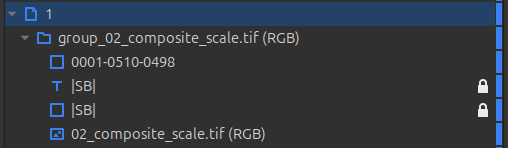
Fig. 67 The ROI - 0001-0510-0498, the scale bar and scale bar text - |SB|, and the image - 02_composite_scale.tif (RGB) is shown.#
Select the annotation you want to modify in the layers and objects interface. Then edit height and location of the scale bar. Edit the dimension annotation such that it is uniform and legible across all images.
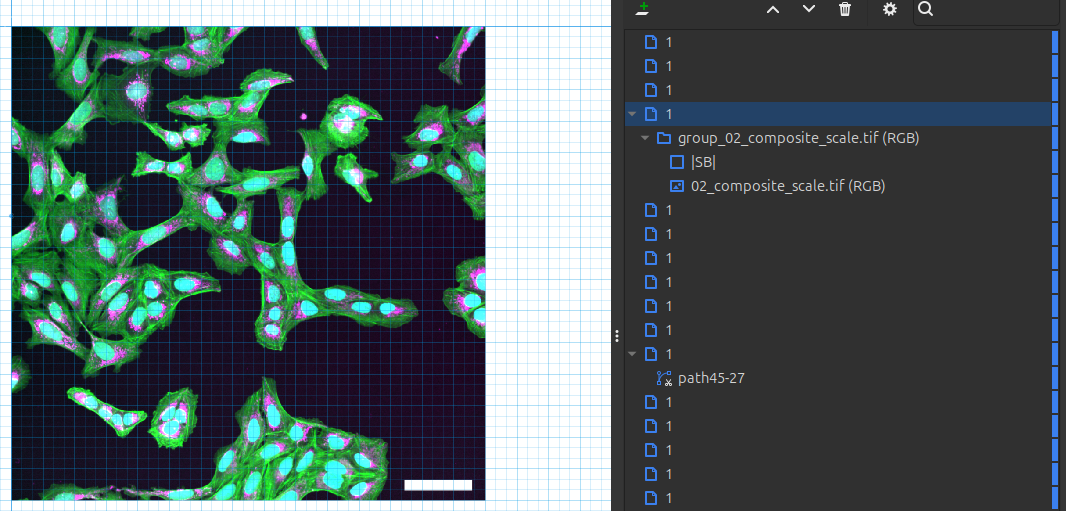
Fig. 68 Scale bar adjusted for height and location. The dimension will be specified in the figure legends.#
Examples of scale bars#
Scale bars can be presented in different forms and location. Make sure that they do not obscure data and any writing is legible.
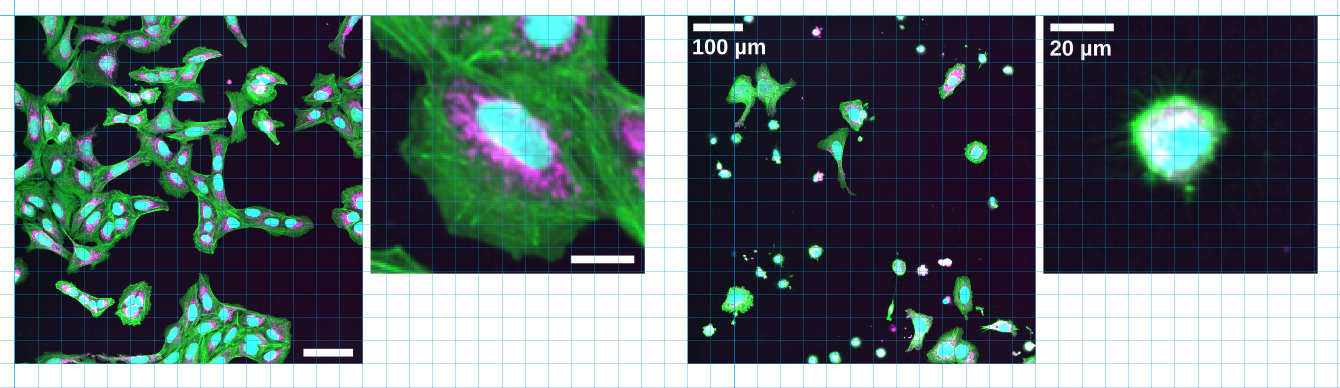
Fig. 69 Different examples of annotated scale.#
Tip
To make annotations simpler in the image, one can specify the physical dimension that the scale bar represents also in the figure legends. To easily retrieve this information, one can drag the scale bar text outside the canvas.
If different image panels have the same scale bar, you can put the scale bar in the first image. It is critical that images of different dimensions (e.g., overview and enlarged) show the correct scale.
Modify ROIs#
In Inkscape (or any other vector graphics tool), we can then add other annotations. We recommend adding all important annotations that are needed to easily interpret the image figures directly in the image figure. Specifically for multichannel images, an explanation of the colors should be provided.
Also, the location of the inset or an enlarged crop should be marked in the overview. Select the ROI in the layers panel:
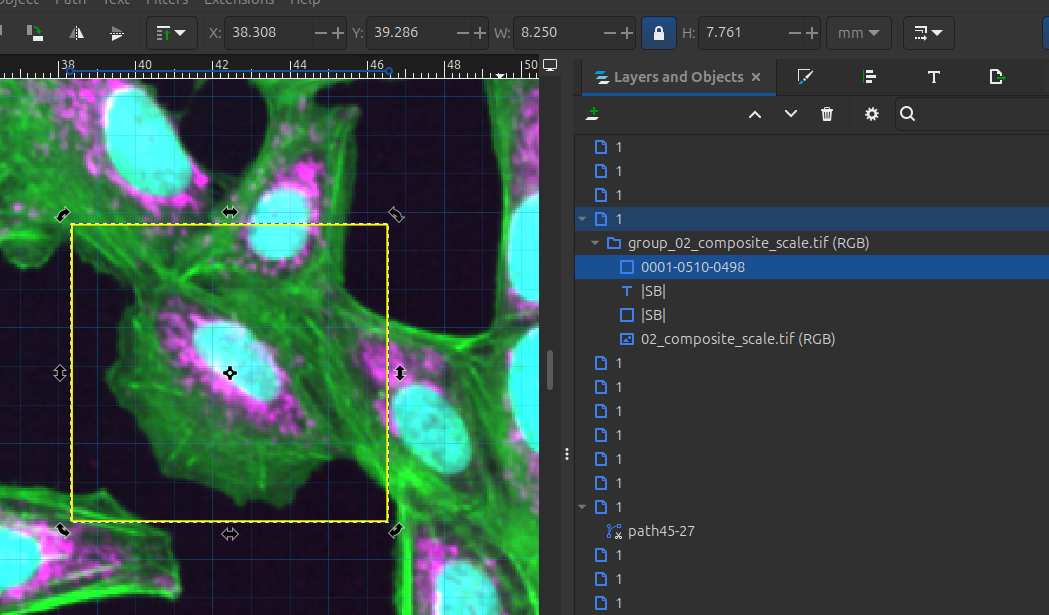
Fig. 70 The ROI when added as an overlay can also be exported in the SVG and imported in inkscape. You can then modify the color and thickness of the ROI.#
The appearance of the ROI can then be modified via:
Object > Fill and Stroke…
For changing the color, select the Stroke tab. In the Fill and Stroke interface select the “Stroke Paint” tab.
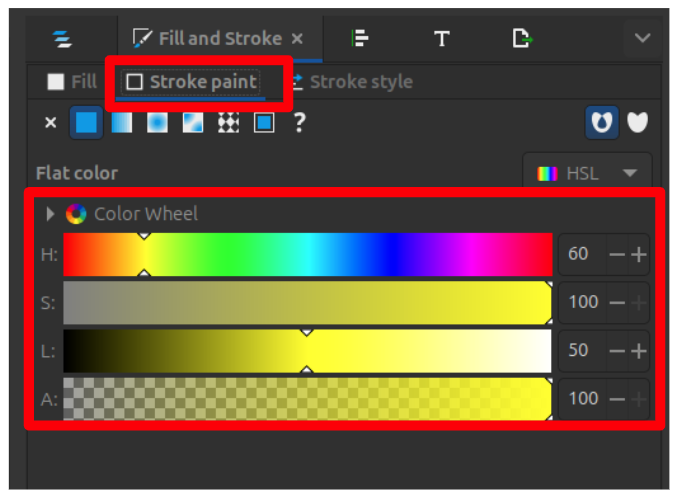
Fig. 71 In the Fill and Stroke interface select the “Stroke Paint” tab.#
Modify the color of the ROI via the color settings in the Stroke Paint panel.
Note
Choose the color of the annotation such that there is good contrast with the image content. In a grayscale image you can use a color (e.g., yellow, magenta, and green). In a color image use a color that is not present in one of the channels (in this example, white or yellow work well).
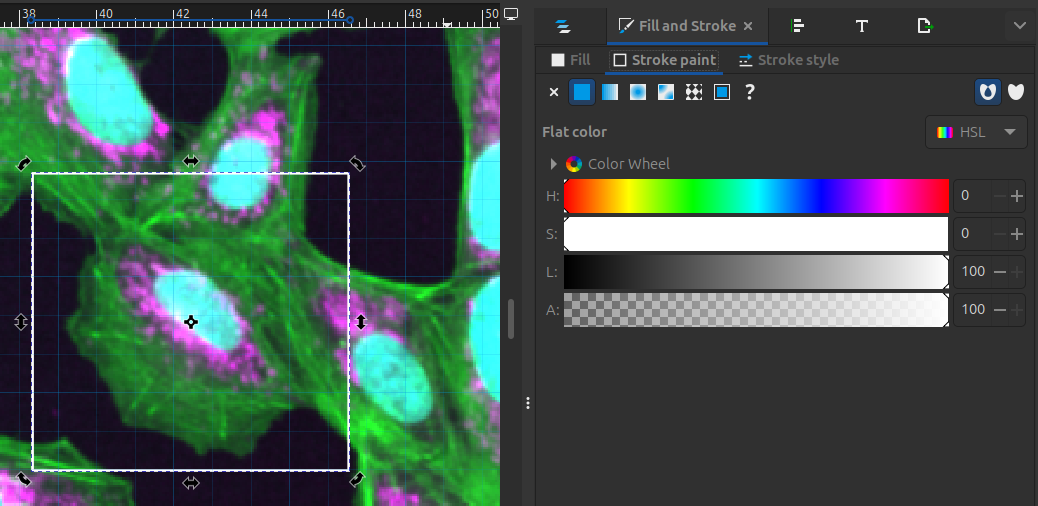
Fig. 72 Adjust the color of the ROI.#
After the color has been adjusted, modify the line width of the ROI. Select the Stroke style tab in the Fill and Stroke interface, then adjust the Width setting:
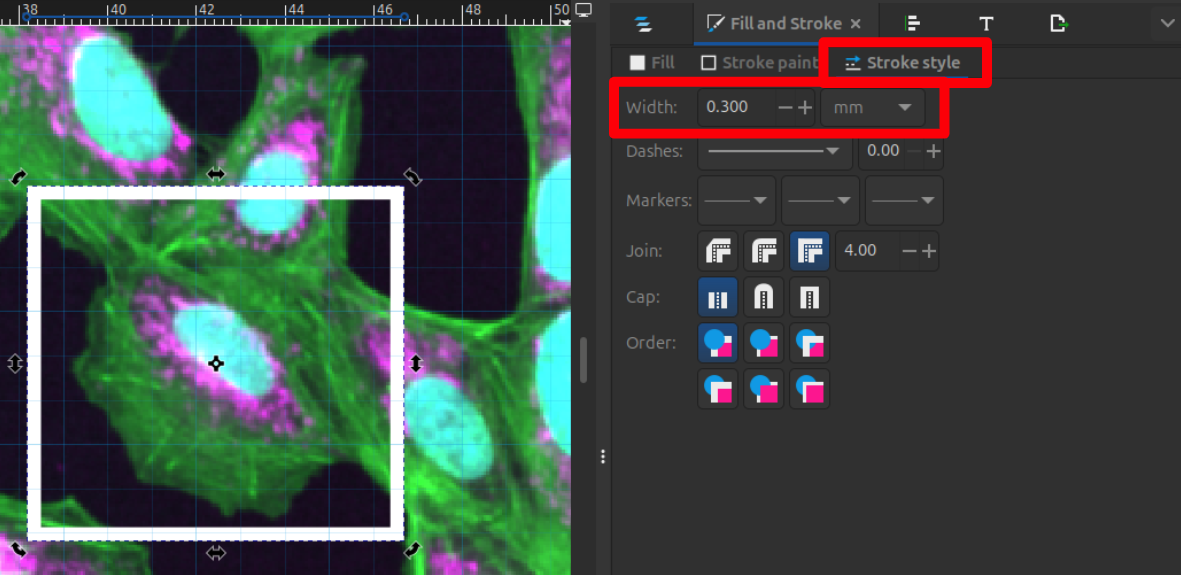
Fig. 73 Adjust the width of the ROI lines so that the ROI is clearly visible.#
Additional annotations#
Consider adding annotations, such as cell type and treatment, to help the viewer interpret your results more quickly. You can also use arrows or other symbols to highlight specific areas of interest within the data.
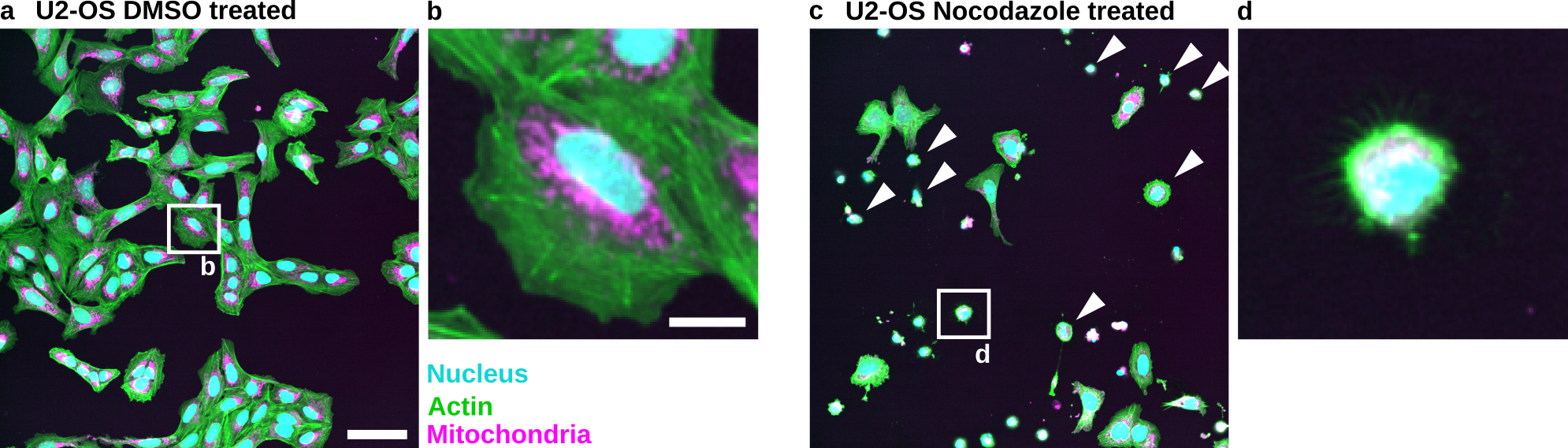
Fig. 74 Example of possible annotations in an image.#
Export image figure#
If you have finalized the image figure you can then export it for sharing.
Go to: File > Export…
You can then define what you export (e.g., entire Page, specific selection). For export and sharing as a Raster Graphic (e.g., TIFF) with a journal choose at least 300 dpi resolution.
Finally define the location for saving and a export format. We recommend PDF (*.pdf):
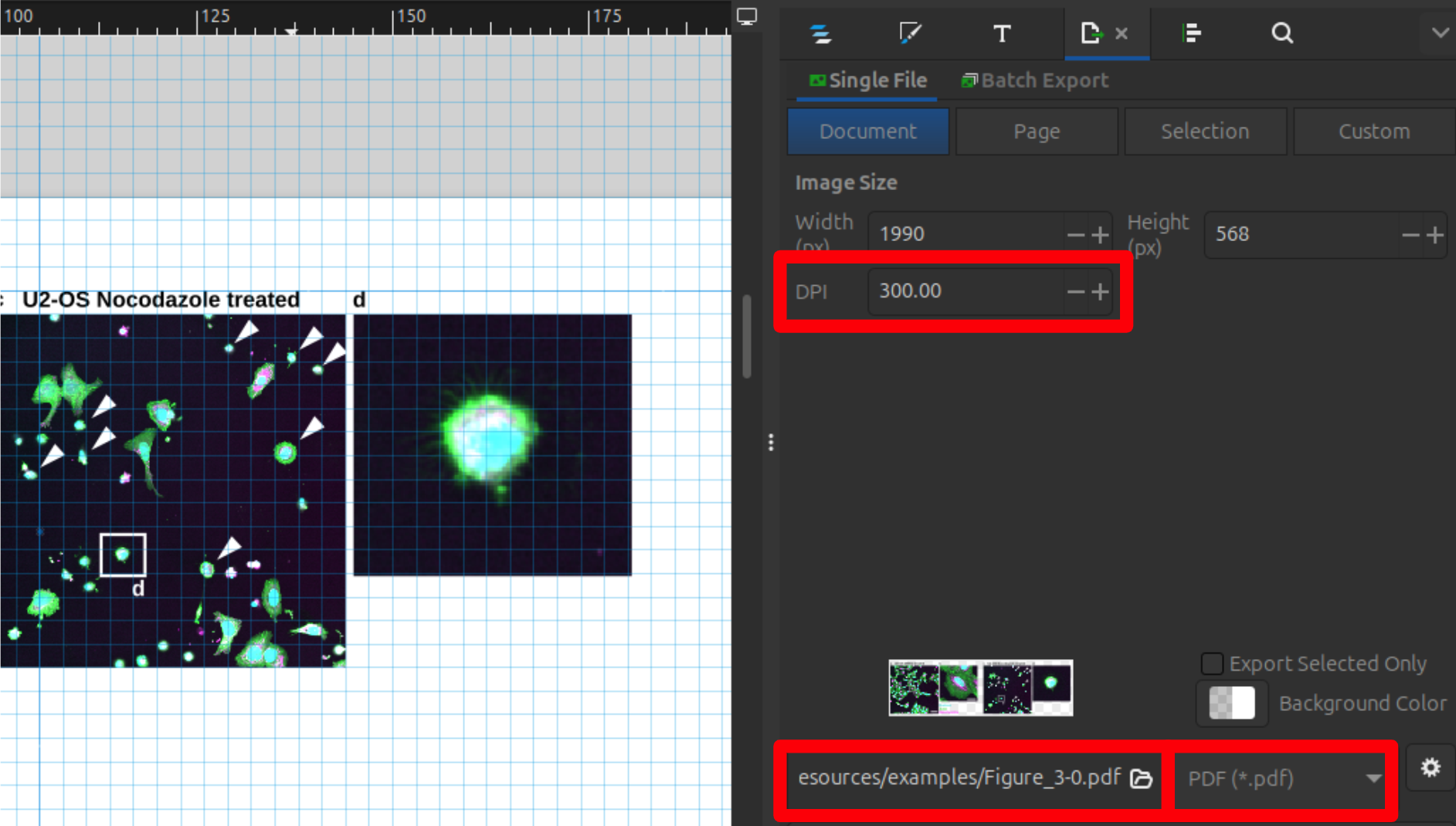
Fig. 75 Example of possible annotations in an image.#
You can download the intermediate result of the tutorial here: figure_example.svg (right-click and select “Save Link As…”).
Figure legends#
The figure legends provide further details to explain what the viewer is seeing. They should be focused on the result and provide further critical information to interpret the image, e.g., the dimensions of the scale bar or the use of other annotations.
See below a proposal for an image figure legend:
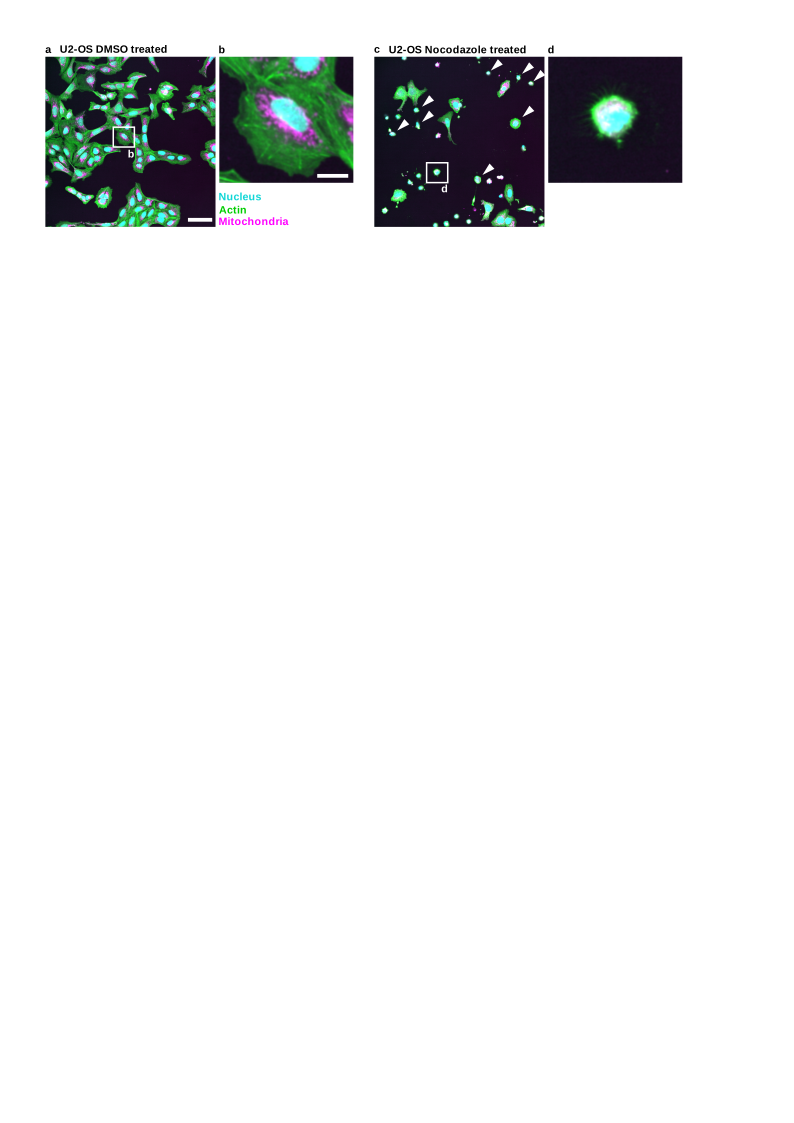
Fig. 76 Nocodazole treatment results in the appearance of small rounded cells in U2-OS cells: (a) U2-OS cells treated with DMSO only. (b) Cropped image of a single cell treated with DMSO. (c) U2-OS cells treated with Nocodazole at a 5 µM concentration over 24 h show appearance of small rounded cells (White Arrowheads). (d) Cropped image of a small rounded cell. Scale bar represents 100 µm (a) and 20 µm (b).#
Important
Basic image processing — e.g., linear adjustments such as brightness/contrast settings — should generally be explained in the methods.
Advanced or non-linear methods such as gamma adjustment, median filter, deconvolution, or deep-learning-based image restoration (e.g., Noise2Void) are not readily obvious to the viewer and should additionally be specified in the figure legend, so the reader knows the displayed image has been transformed beyond simple intensity rescaling.
Methods#
The methods should explain the key processing that was applied to the image figures. They should also name and cite the image processing platform — including the version used — as well as any plugins.
For Fiji, the version can be seen in the taskbar:
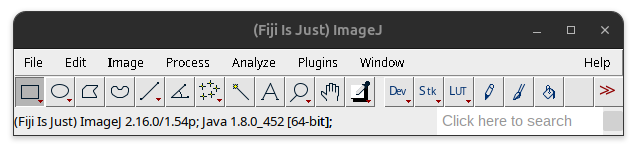
Fig. 77 Fiji version in the taskbar.#
Based on this, a possible methods section could read:
Image figures were processed using Fiji Is Just ImageJ (Fiji) (Schindelin et al. 2012) version 2.16/1.54p and the BioVoxxel Figure Tools (Brocher and Mutterer 2026). Following figure publication guidelines (Schmied et al. 2024), images were adjusted for brightness/contrast using the same min and max settings across compared channels.
Used brightness/contrast settings:
Channel |
Channel Label |
Min |
Max |
|---|---|---|---|
1 |
Mitochondria |
308 |
2484 |
2 |
Actin |
84 |
2965 |
3 |
Nucleus |
36 |
1270 |
Citations:
Schindelin, J., Arganda-Carreras, I., Frise, E. et al. Fiji: an open-source platform for biological-image analysis. Nat Methods 9, 676–682 (2012). https://doi.org/10.1038/nmeth.2019
Jan Brocher, & mutterer. (2026). biovoxxel/BioVoxxel-Figure-Tools: BioVoxxel Figure Tools - 4.4.1 (bvft-4.4.1). Zenodo. https://doi.org/10.5281/zenodo.18656531
Schmied, C., Nelson, M.S., Avilov, S. et al. Community-developed checklists for publishing images and image analyses. Nat Methods 21, 170–181 (2024). https://doi.org/10.1038/s41592-023-01987-9
Tip
The exact brightness/contrast settings for each channel are dependent on the exact intensity distribution in each single-channel image. For further information on how to adjust brightness/contrast, go to Brightness and Contrast.
To make your work easier, you can add the macro that we created in Bonus: Macro recorder together with your original and processed images as documentation instead of specifying the brightness/contrast settings.
Availability#
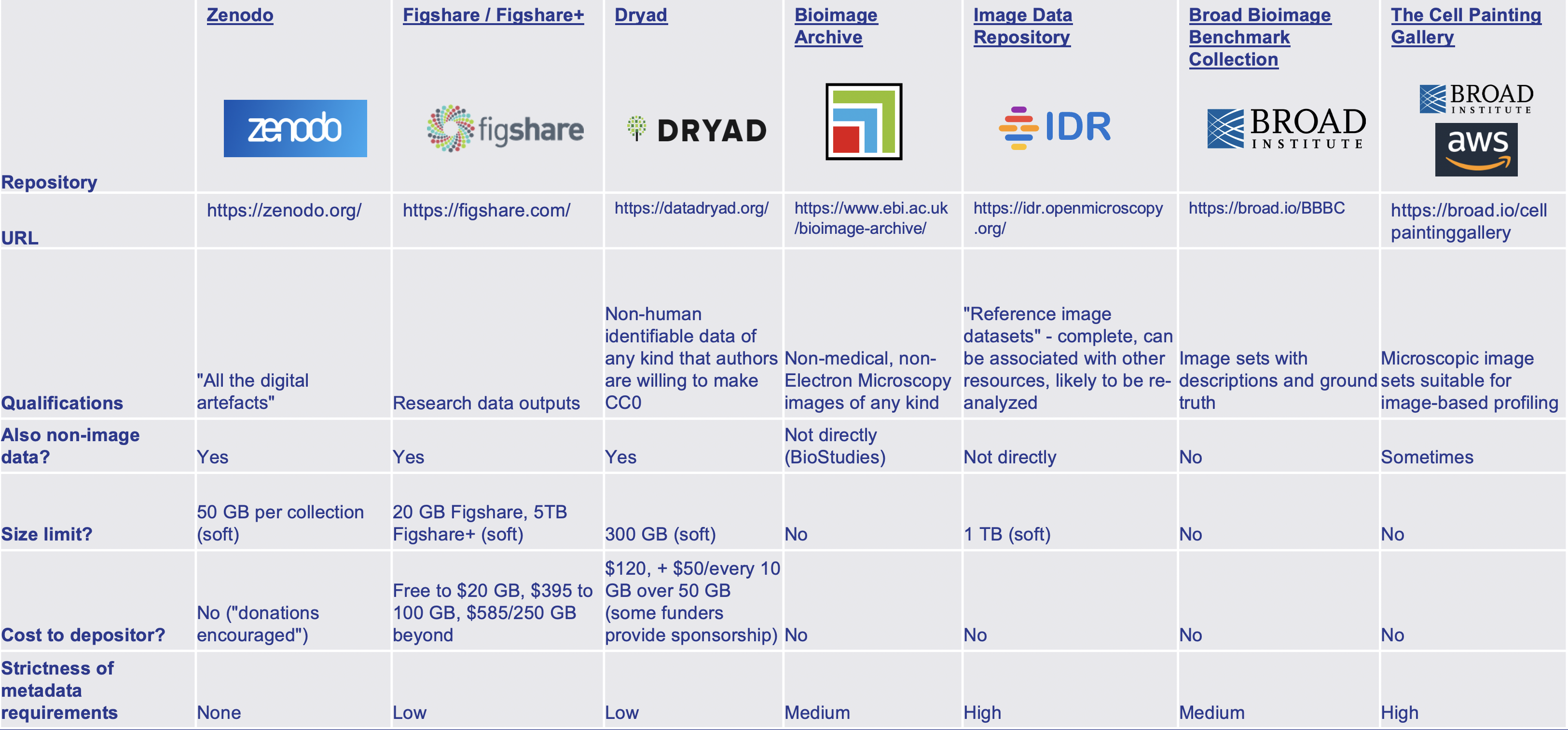
Fig. 78 Examples of different repositories. Overview provided by Cimini 2023.#
As long as it is legally and technically feasible, the original images as well as the final processed images should be made available in public repositories. The original images should be provided in a losslessly compressed format along with any ground truth or manual annotations.
Next unit#
In the final Unit 4: Quantification, we will complete the course by performing a basic quantitative image analysis using an existing tool, documenting the software, tool versions, and analysis settings used, and identifying what needs to be shared (code, settings files, example data).
Bonus: Grayscale figure#
Providing the individual grayscale channels provides much better visualization of the image content. This is beneficial if you talk about structures in a specific channel for instance. Also the image information is much better to view in grayscale.
We therefore recommend if space permits to provide the indivdual gray scale images in the image figure. Alternatively, the grayscale images can be provided in supplementary figure.
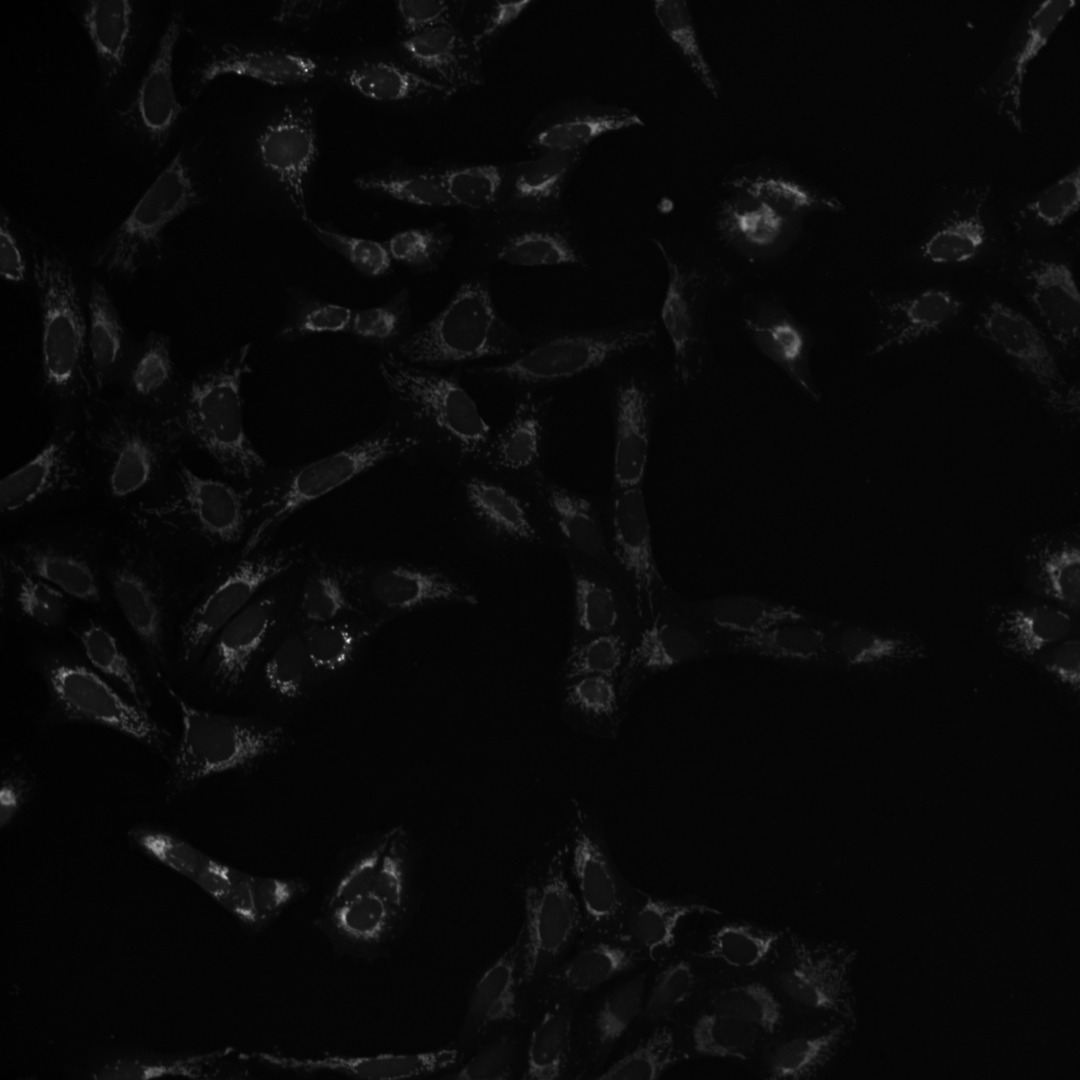
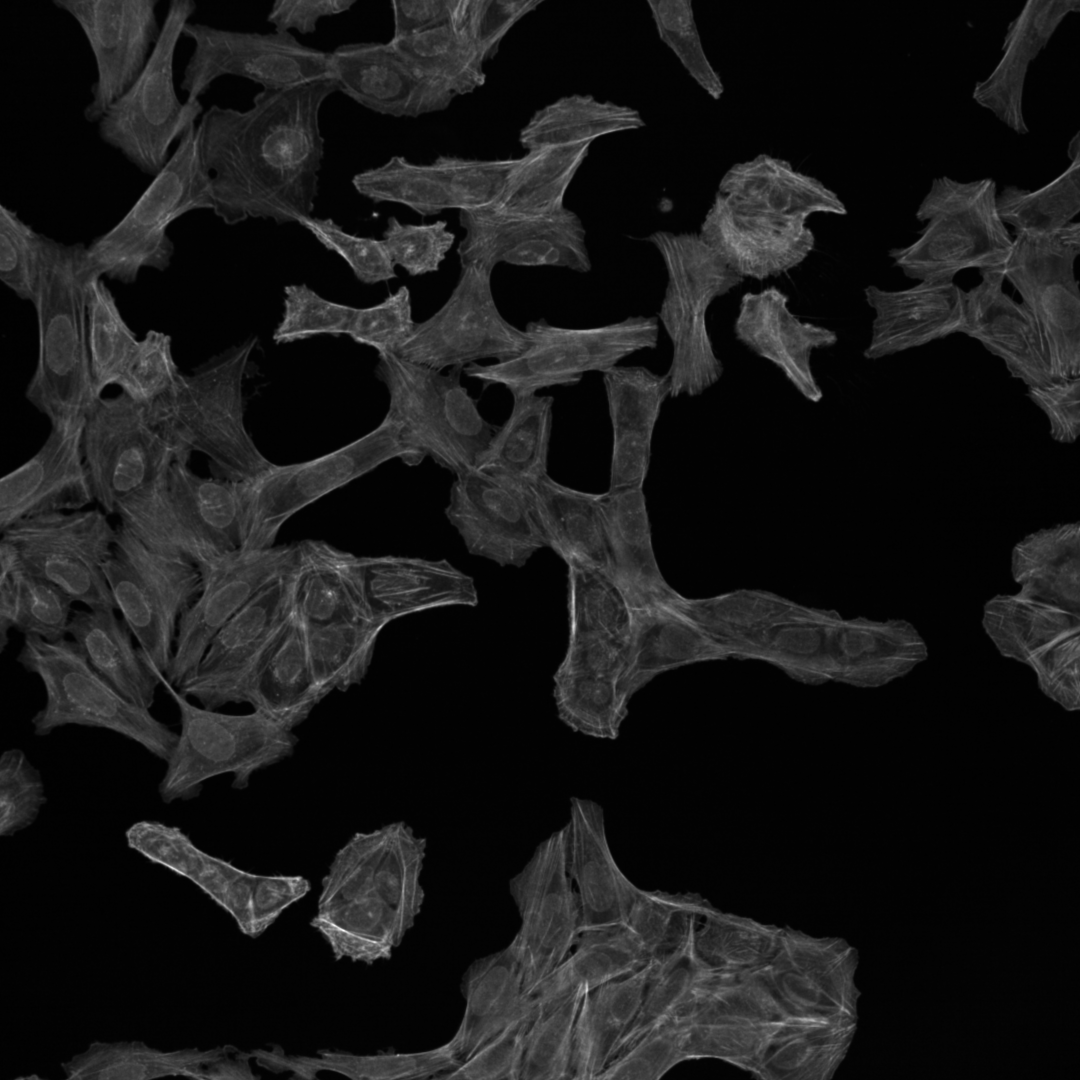
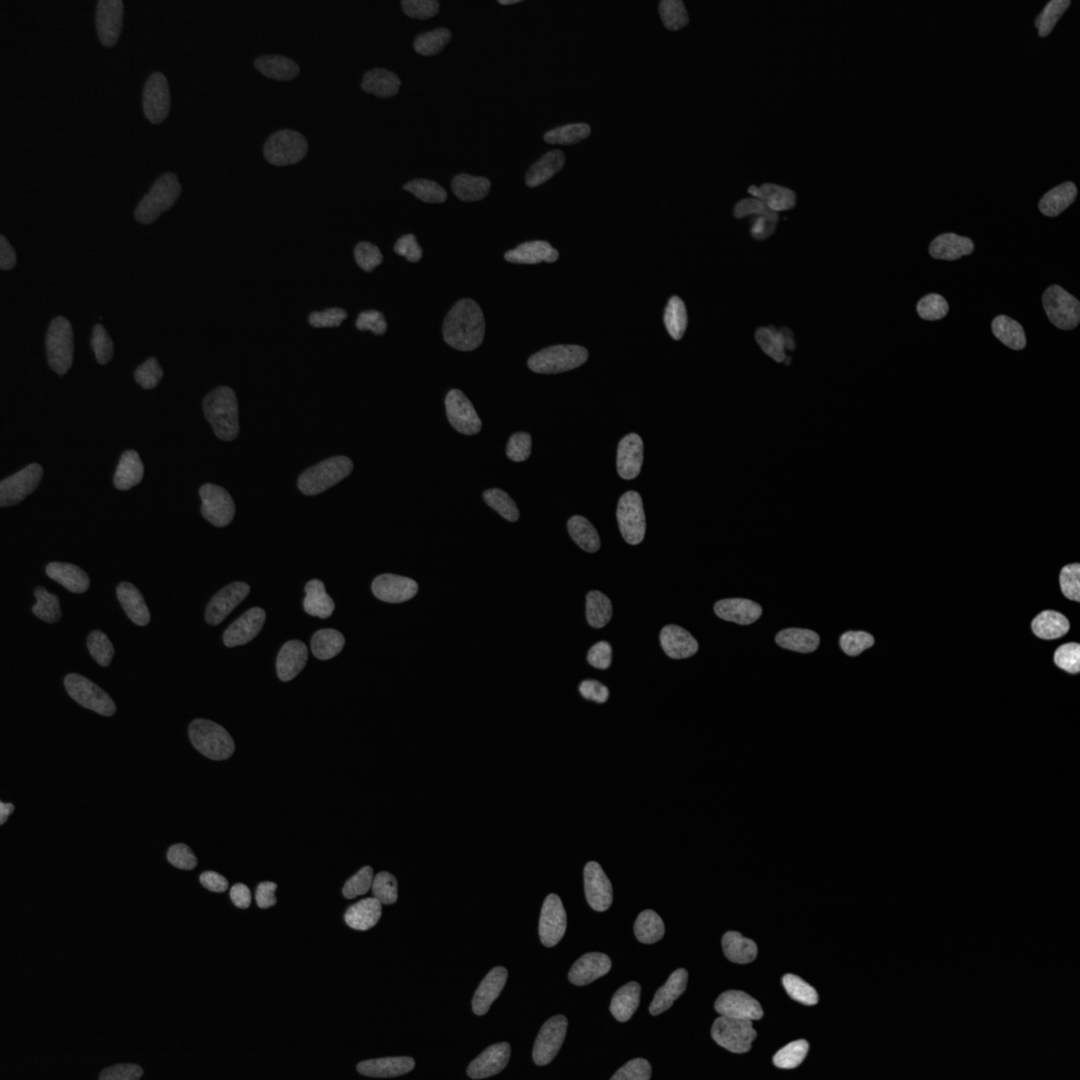
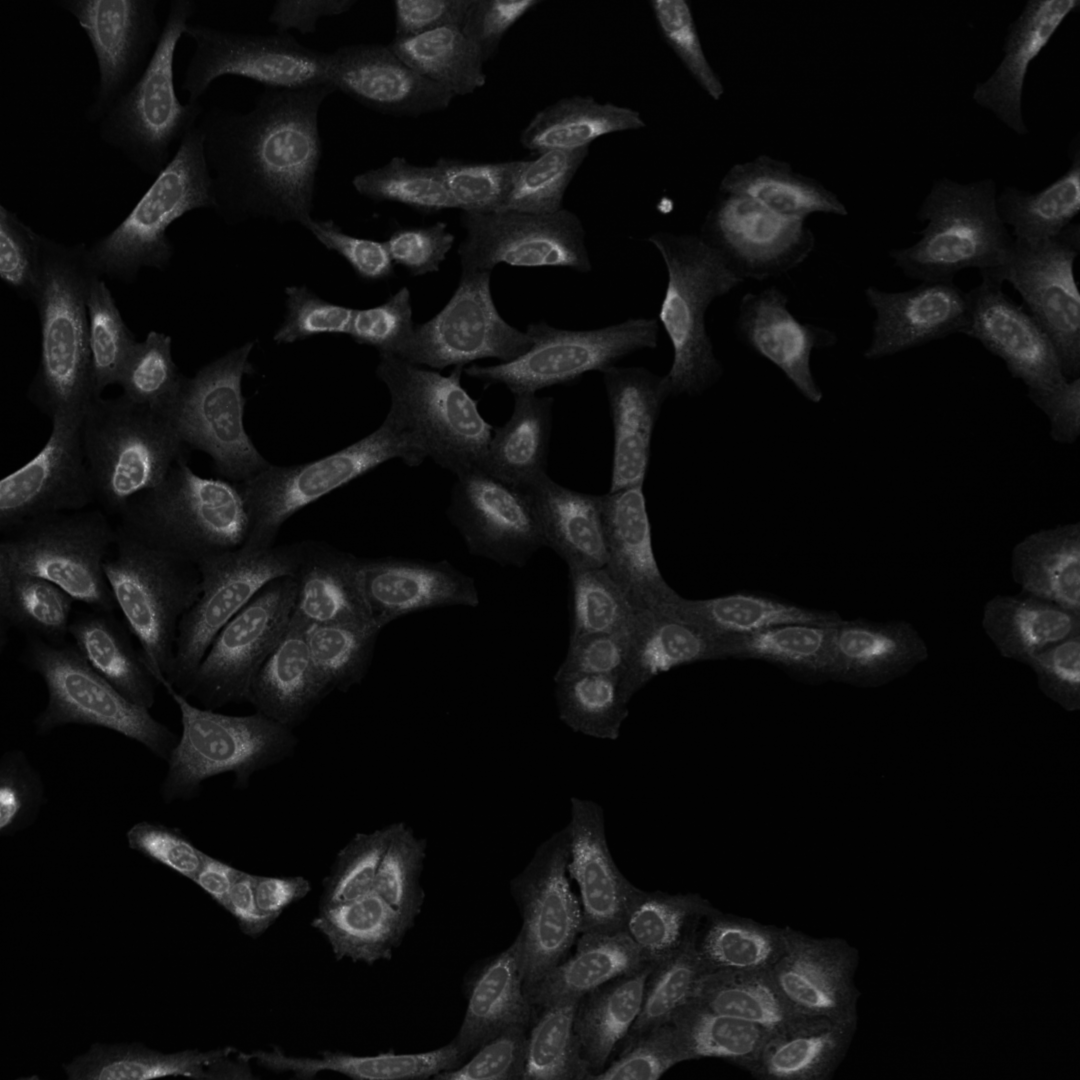
This bonus exercise will show an example of doing this. In Unit-1 I have asked you to create and save the grayscale color images. You can download the examples also here:
You can download the examples grayscale images here (right-click and select “Save Link As…”):
For the figure we first adjust the brightness contrast:
Image > Adjust > Brightness/Contrast… (Ctrl + Shift + C; Mac: ⌘ + Shift + C)
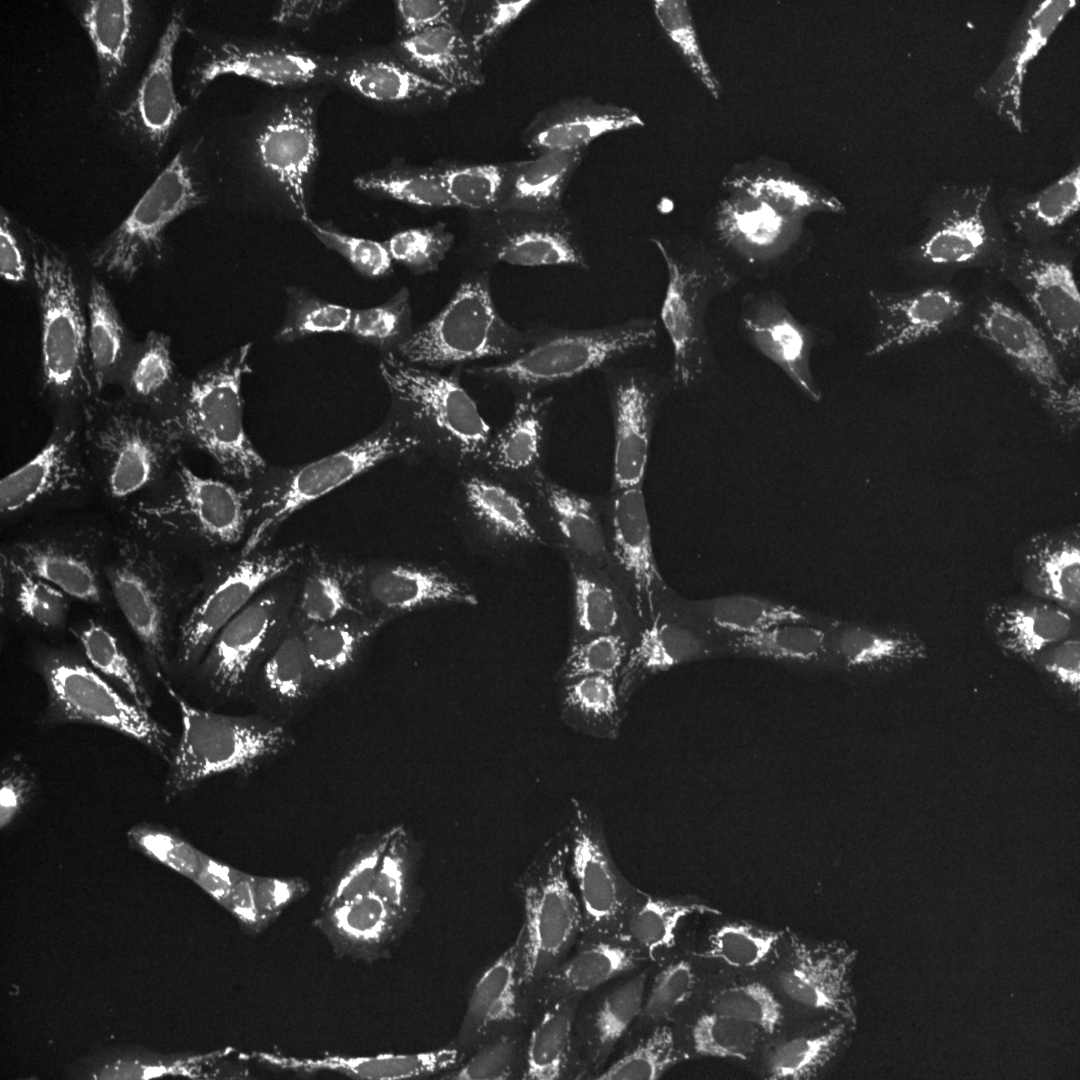
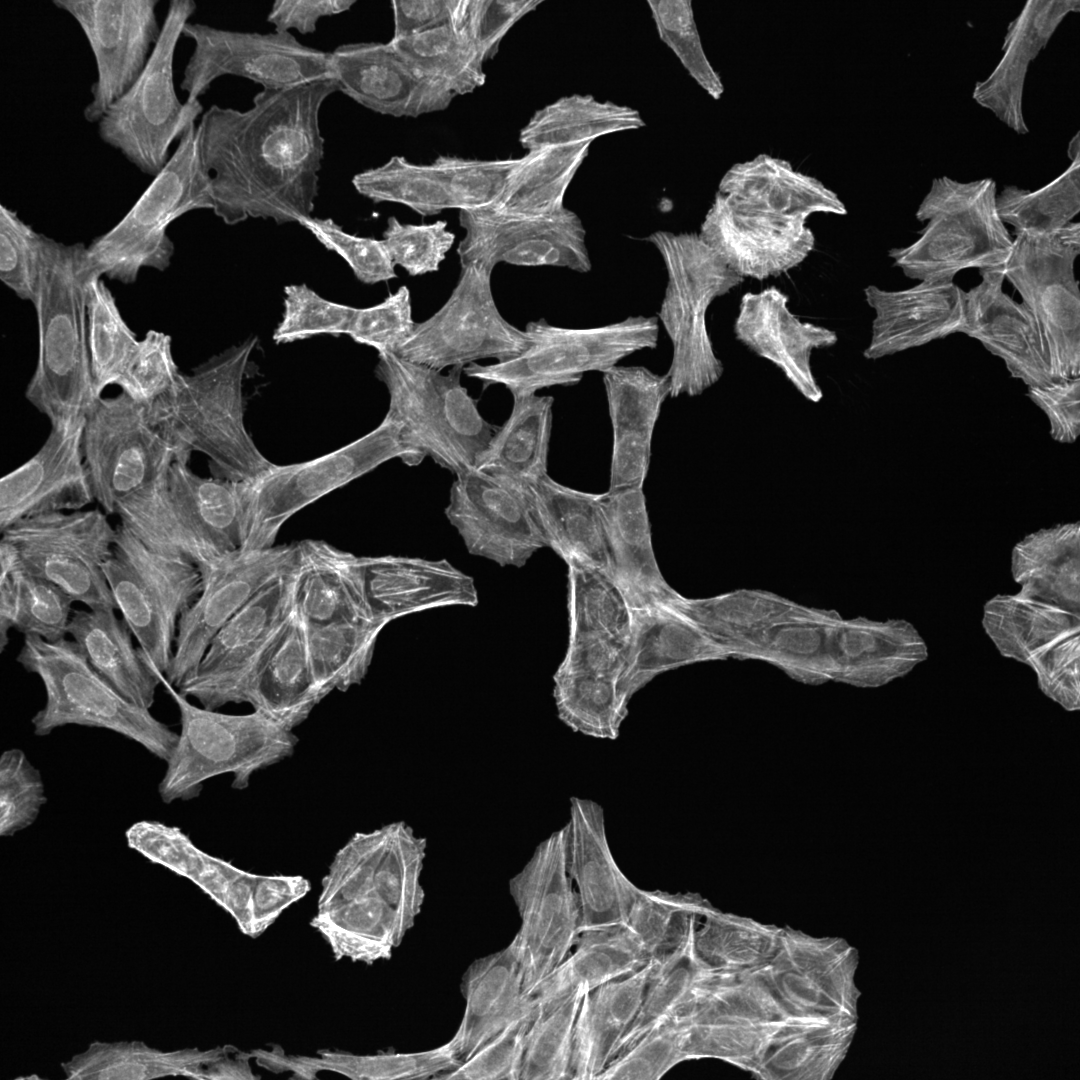
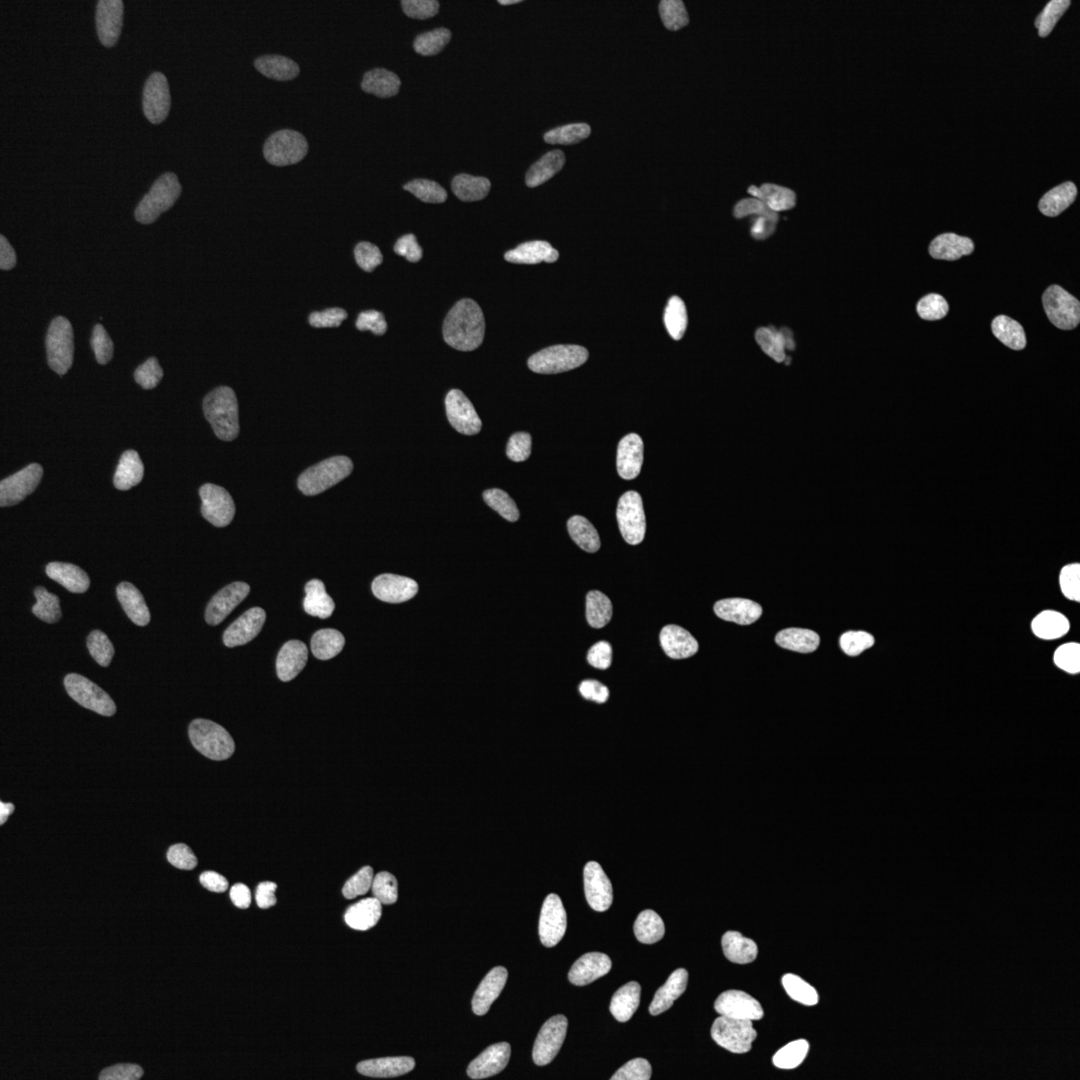
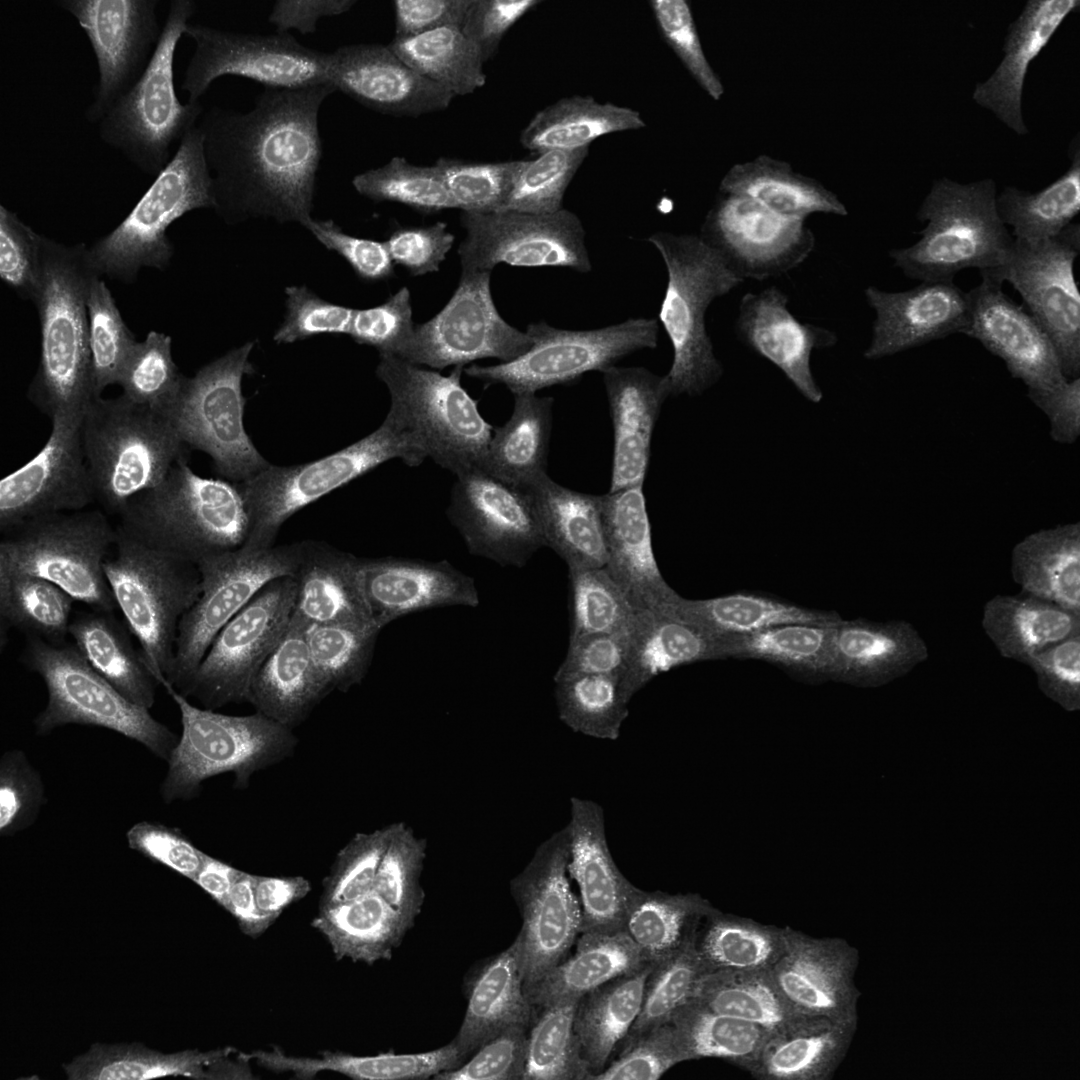



Export the images as SVG and import them into Inkscape
Plugins > BioVoxxel Figure Tools > Export all images as SVG
Then load the images into Inkscape figure template. For a comparison we also add the merge image.
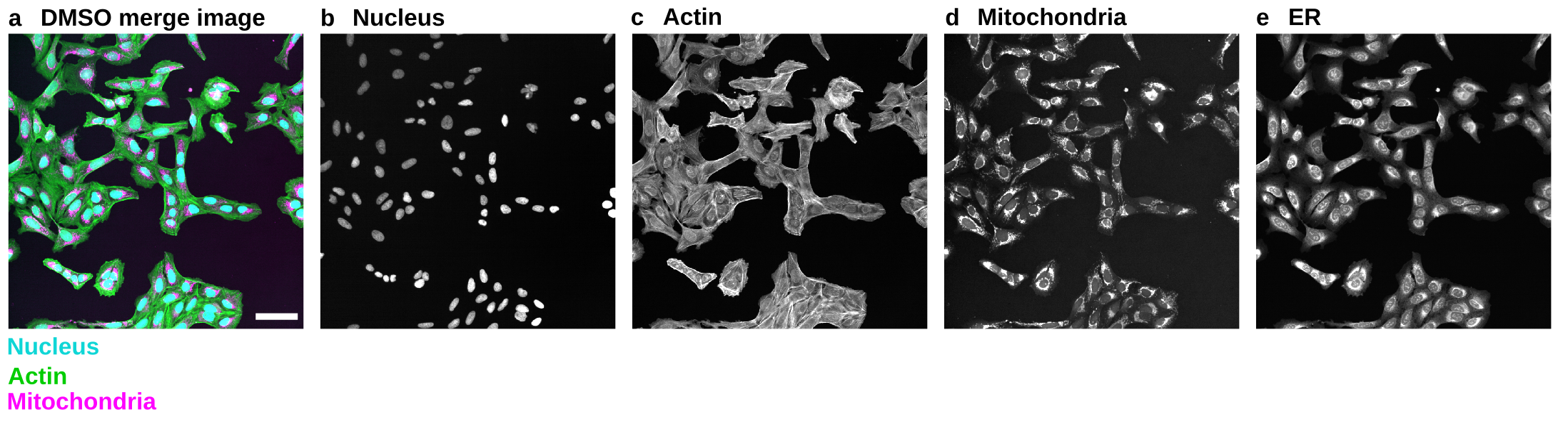
Fig. 87 Merge multichannel image provided with grayscale single channel. (a) merge image. (b) Nucleus channel. (c) Actin channel. (d) Mitochondria channel. (e) ER channel.#
I like to provide the merged color image with annotated colors for an overview, placed next to the grayscale single-channel images with their respective channel information annotated.